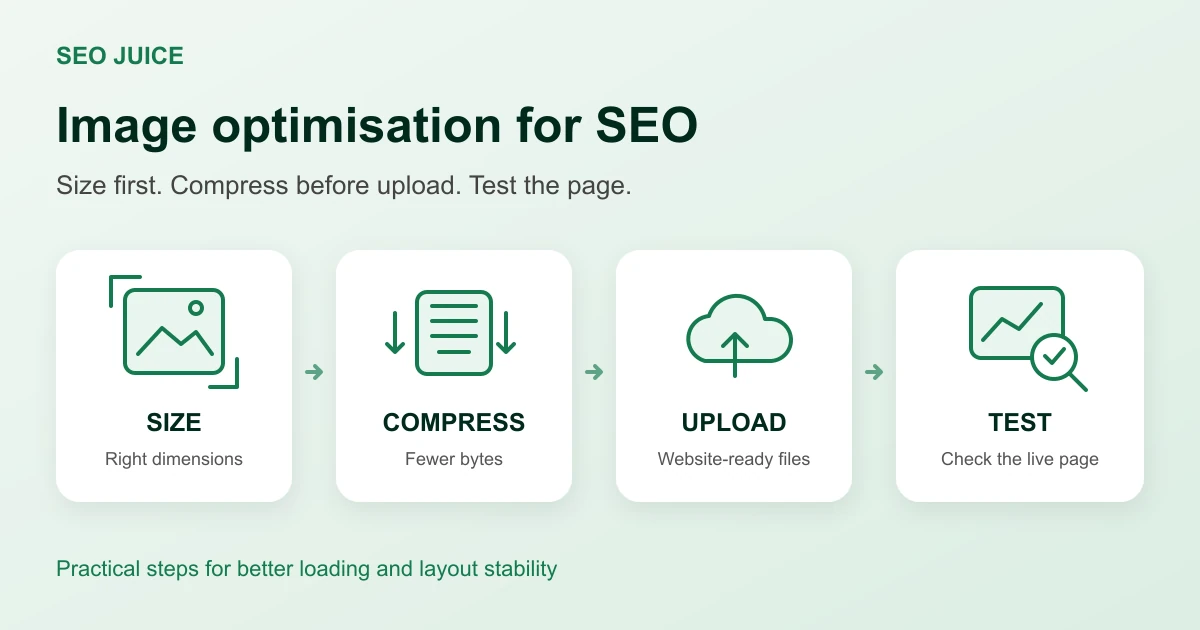
Image optimisation helps SEO by making pages lighter and improving the experience of loading and using them. Resize images for their intended use, compress them before uploading, and make sure the website loads them without pushing the layout around. The biggest image-related Core Web Vitals opportunities are usually Largest Contentful Paint (LCP) and Cumulative Layout Shift (CLS).
Our usual pre-upload routine is simple: make sure an image isn’t unnecessarily massive, then run it through TinyPNG before adding it to the site. That habit is an accessible place to start, whether you’re updating a service page, publishing a blog post, or adding photos of your work.
For a Halifax business, this is one practical part of Halifax SEO. A useful page still needs to load well for someone opening it on their phone.
Why Images Matter for SEO
A photograph can look small on a page while still being a huge download. Shrinking it with a website editor or CSS does not necessarily shrink the underlying file.
Imagine uploading a 4,000-pixel-wide photo into an article where it appears around 800 pixels wide. Unless the site serves a smaller version, visitors may download detail the layout never needs. Repeat that across a gallery and the page carries unnecessary weight.
Google says its ranking systems use Core Web Vitals, but good scores do not guarantee a top position. Image optimisation supports a better page experience; it does not replace relevant content or the other work covered in our guide to ranking on Google in Halifax. See Google’s page experience guidance for that distinction.
Which Core Web Vitals Do Images Affect?
The current Core Web Vitals measure three different experiences:
- LCP measures loading: when the largest visible image or text block appears. A large hero photo is often the element to investigate.
- CLS measures stability: whether content moves unexpectedly. An image loading without reserved space can push text or buttons down.
- INP measures responsiveness: how quickly the page responds to interactions. Compressing photos alone will not fix slow interaction handlers or heavy scripts.
Google’s good-experience thresholds are LCP at or below 2.5 seconds, CLS at or below 0.1, and INP at or below 200 milliseconds, assessed at the 75th percentile of visits, with mobile and desktop considered separately. These are page-experience measurements, not image file-size targets. Source: web.dev’s Core Web Vitals overview.
Smaller files can shorten the download of an LCP image. However, server delays, late image discovery and rendering delays can still hold it back. Google’s LCP optimisation guide explains why compressing an image is only one part of the loading process.
A Practical Image Optimisation Workflow
1. Start With Where the Image Will Appear
Before exporting, identify its job. Is it a small staff portrait, a full-width banner, an article illustration or a gallery photo people can enlarge?
Check the largest width that space actually uses. For an image displayed at 800 CSS pixels, an export around 800 to 1,600 pixels wide may be appropriate, depending on the sharpness needed on high-density screens. This is a starting point, not a rule for every image. A small thumbnail rarely needs the same source as an expandable portfolio photograph.
Crop to the intended shape and keep the original separately. Avoid stretching a small image larger: extra pixels created by enlargement cannot restore missing detail. Google’s guidance on correct image dimensions explains how display size and screen density affect the choice.
2. Resize the File Before Uploading
Open a copy in your image editor and change its pixel dimensions. For example, export a wide article photo at the dimensions chosen for the article layout, rather than uploading the camera original and dragging its corners smaller later.
Check the exported file’s properties. You want the actual pixel dimensions to change, not just its appearance in a document. Think in pixels and download size rather than print settings such as DPI.
If you manage a photo-heavy site, agree on a few export sizes for repeat uses. A simple note for staff covering article photos, thumbnails and banners makes consistent uploads much easier.
3. Compress the Resized Image With TinyPNG
This is where TinyPNG fits into our routine:
- Visit tinypng.com.
- Drop in the resized image and let the compressor process it.
- Download the optimised file.
- Compare it with the original at the size visitors will see.
- Upload the optimised version, keeping your original outside the website’s upload workflow.
Despite its name, TinyPNG supports more than PNG, including JPEG, WebP and AVIF. Its compression reduces file size; do not assume that compression alone has also right-sized the pixel dimensions.
Inspect fine text, faces, product details and gradients. If important details look blurred or colours look wrong, revisit the export or compression choice. The smallest possible file is not useful if customers cannot clearly see what you are showing them.
4. Choose a Format That Suits the Image
Compare WebP or AVIF with your JPEG or PNG export where your website supports them. Keep the version that provides suitable quality at a sensible size. There is no need to convert every photograph to PNG, and a newer extension does not automatically make a file smaller.
For logos and simple line drawings, an SVG may be appropriate when you have a proper vector source. Renaming a JPG file to .webp or .svg does not convert it. Google’s image SEO guidance covers supported formats and the importance of clear, relevant images.
5. Let the Website Serve Appropriate Versions
A good desktop export is not automatically the best download for a narrow phone screen. Responsive image markup uses srcset and sizes to help the browser choose from different image widths.
Your CMS, theme or image component may generate these versions. Check what the published page actually serves instead of assuming the feature is enabled. If a mobile visitor downloads the largest original for every thumbnail, the delivery setup still needs attention. web.dev’s responsive image guide explains how these attributes work.
6. Reserve Space and Load the Main Image Promptly
Give each image correct width and height attributes, or reserve the same aspect ratio in the layout. The browser can then leave room before the file arrives. With responsive CSS such as width: 100% and height: auto, those attributes establish proportions without forcing a fixed display size. Source: web.dev’s CLS optimisation guide.
Lazy loading is useful for images further down the page. Avoid applying it to the important image visible when the page first opens, particularly if that image is the LCP element. Your developer can also consider fetchpriority="high" for the actual LCP image; marking every image high priority defeats the point. Source: web.dev’s LCP optimisation guide.
7. Give the Image Useful Context
Use a descriptive filename such as halifax-cafe-interior.webp rather than IMG_4827.jpg. Write alt text that explains a meaningful image in its page context. Decorative images should generally have empty alt text.
Keep the subject relevant to the adjoining paragraph, and avoid stuffing keywords into filenames or descriptions. Alt text helps accessibility and search understanding; it does not make a large file download faster. Google’s image SEO best practices cover this context alongside technical delivery.
How to Check Whether the Changes Helped
Test a representative page in PageSpeed Insights before and after the update. Start with mobile, note the LCP element, and compare the image-related findings under similar test conditions. Run more than one test because individual results vary.
Check the published page too. Is the right image loading? Does the layout stay steady? Are small-screen images sharp without being oversized? If an old file still appears, check the website or CDN cache.
Distinguish a lab test from real-user data. Lighthouse helps diagnose a page now; PageSpeed Insights field measurements cover the previous 28 days and will not instantly reflect a new upload. It may show origin-wide data when a particular URL lacks enough data, or no field data if the whole site lacks sufficient samples. Source: Google’s PageSpeed Insights documentation.
If LCP is still slow, investigate the server, fonts, scripts and image loading order. Image work belongs within a broader technical SEO review, rather than becoming an endless exercise in shaving another kilobyte from an already small file.
Your Before-Upload Checklist
- Is the image relevant to the page?
- Have I cropped and resized the actual file for its intended use?
- Have I compressed it and checked the visual quality?
- Will the site serve appropriate widths to smaller screens?
- Is space reserved so the layout stays steady?
- Is the main visible image allowed to load promptly?
- Have I checked the published page?
If time is limited, start with the homepage’s main image, then important service pages and image-heavy articles. Our small-business SEO guide can help you prioritise the wider workload, and the Halifax SEO checklist puts image performance alongside other technical and content tasks.
The habit to build is straightforward: size first, compress before uploading, and test the actual page. If you’re unsure which images are holding your site back, request a free SEO audit for a clearer starting point.